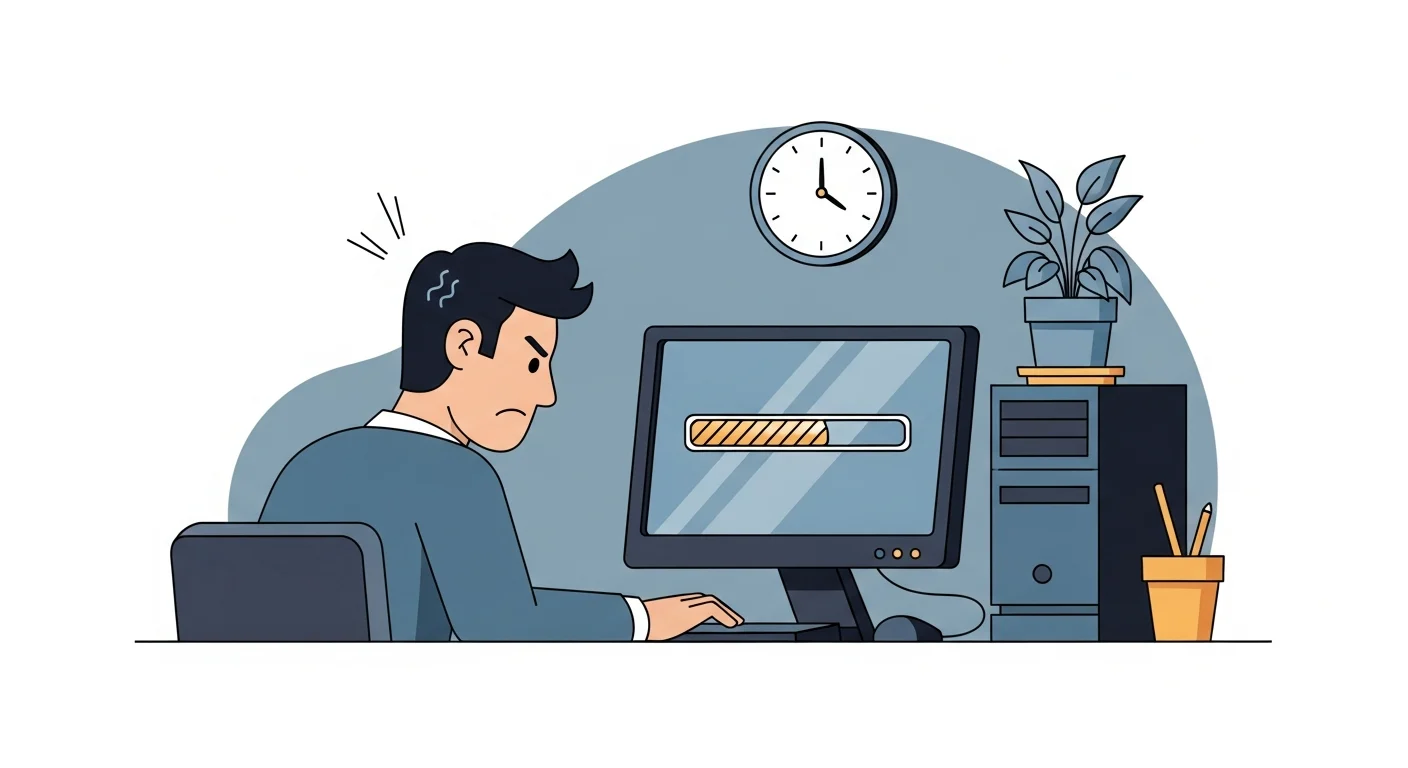
This is the most common call we get. Bar none.
“My computer is slow.”
Sometimes it’s a five-minute fix. Sometimes it means the machine is on its last legs. But before you call us — or start shopping for a new laptop — here are seven things worth checking first.
1. Restart it. Actually restart it.
Not sleep. Not hibernate. Not “I closed the lid last night.” A real restart — Start menu, click Restart, and wait for it to come back up.
Windows accumulates junk in memory over time. A proper restart clears it out. You’d be amazed how often this solves the problem entirely.
2. Check how full your hard drive is
Open File Explorer, right-click your C: drive, and click Properties. If that bar is red — or you’ve got less than 10–15% free space — your computer is struggling.
Windows needs room to breathe. Temporary files, virtual memory, updates — they all need free space to work. A full drive is a slow drive.
Quick wins: empty the Recycle Bin, clear your Downloads folder, and run Disk Cleanup (just search for it in the Start menu).
3. See what’s eating your resources
Press Ctrl + Shift + Esc to open Task Manager. Click “More details” if it looks too simple, then look at the CPU and Memory columns.
If something you don’t recognize is using 80% of your CPU, that’s your culprit. Common offenders: antivirus scans running in the foreground, browser tabs (Chrome is hungry), and software updaters doing their thing at the worst possible time.
4. How many browser tabs do you have open?
Be honest. Fifteen? Twenty-five? Forty?
Each tab uses memory. Chrome is especially aggressive about this. If your computer has 8 GB of RAM and Chrome is using 4 of it, everything else is fighting for scraps.
Try closing tabs you’re not actively using. Or bookmark them — they’ll be there when you need them.
5. Check for Windows updates stuck in the background
Sometimes Windows is trying to install an update and it’s just… sitting there, eating resources while it downloads or unpacks.
Go to Settings > Windows Update and see what’s happening. If there’s an update waiting to install, let it finish. If it’s stuck, a restart usually kicks it loose.
6. How old is this computer?
This is the one people don’t want to hear. But it matters.
If your computer is 5–6 years old, it’s reaching the end of its useful life for business work. Components wear out. Software requirements go up. What felt fast in 2020 feels sluggish in 2026.
The biggest upgrade for older machines? Swapping a traditional hard drive (HDD) for a solid-state drive (SSD). If your computer doesn’t already have an SSD, this one change can make it feel brand new. We do this swap regularly for clients — it buys another year or two of useful life.
7. When was it last cleaned up?
Not physically (though dust buildup is a real thing — especially in office towers). We mean: when did someone last check for unnecessary startup programs, clear temp files, check for malware, and make sure things were running the way they should?
Computers accumulate digital clutter just like desks do. A periodic cleanup makes a real difference.
When to call
If you’ve tried the basics and it’s still slow, there’s probably something deeper going on — a failing drive, a malware infection, a hardware issue, or just a machine that’s ready to retire.
A slow computer is one of the most common calls we get — along with internet outages, printer trouble, and Wi-Fi confusion. Our common IT problems page has a quick checklist for each.
That’s where we come in. Book a remote support session and we’ll connect to your machine, diagnose the issue, and tell you straight whether it’s fixable or time for a replacement.