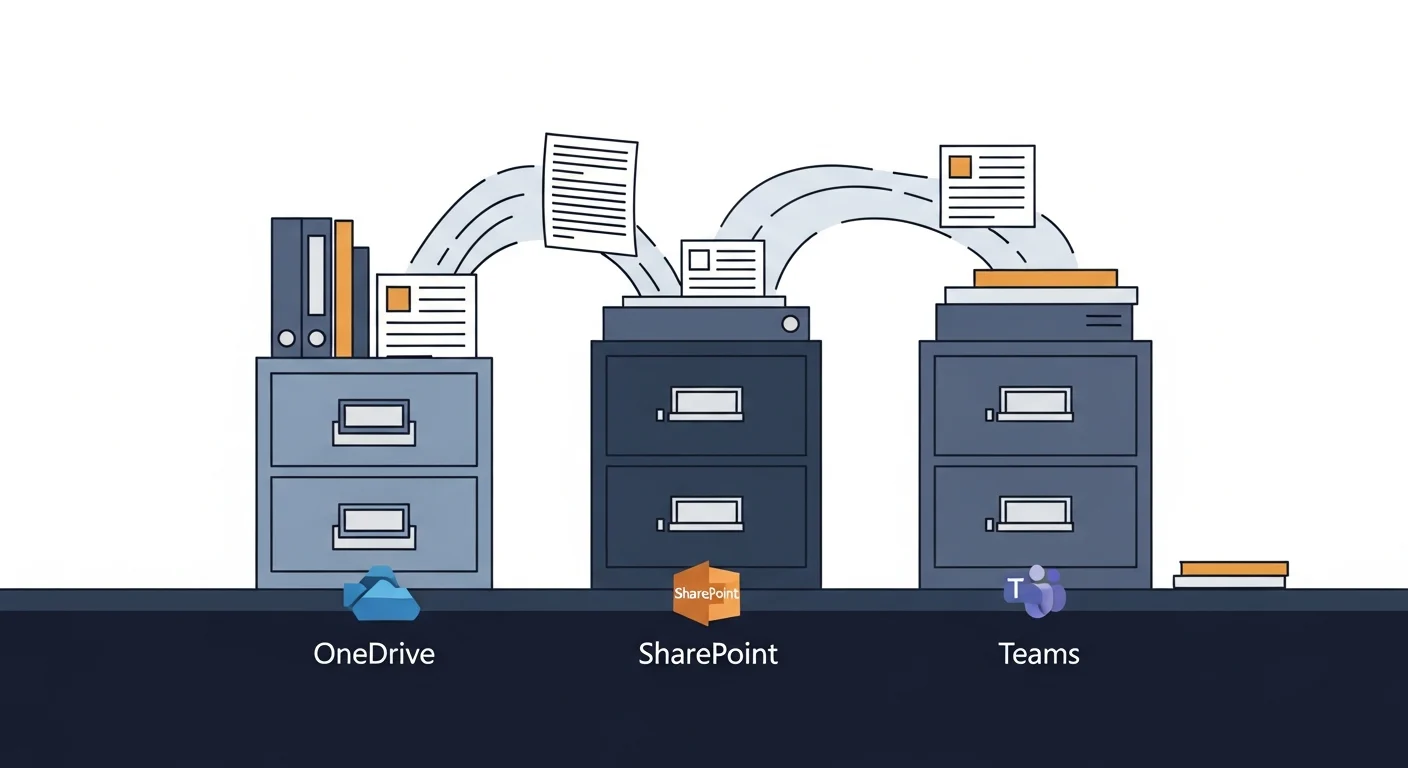
If you use Microsoft 365, you have at least three places to store files: OneDrive, SharePoint, and Teams. Microsoft doesn’t make it obvious which one is for what. So files end up scattered everywhere, nobody can find anything, and someone inevitably asks “wait, where did you save that?”
Here’s the simple version.
They’re not three separate things
Under the hood, OneDrive and Teams both store files in SharePoint. Microsoft built them on the same foundation — they’re just different front doors to the same building, designed for different situations.
Understanding that makes the whole thing less confusing.
OneDrive: your personal work drive
OneDrive is for files that belong to you — drafts you’re still working on, documents only you need, things you’re not ready to share yet.
Think of it like your desk drawer. Organized the way you like, accessible only to you (unless you choose to share something), and synced across your devices so you can get to it anywhere.
Use OneDrive for:
- Working drafts before they’re ready to share
- Personal reference files (your notes, your templates)
- Files you’re collaborating on one-to-one with a specific person
One important note for 2026: Microsoft tightened OneDrive storage limits for new accounts earlier this year — new accounts are capped at 150 GB. If your team has been using OneDrive as a dumping ground for large files, it’s worth doing a cleanup before you hit the ceiling.
SharePoint: your shared filing cabinet
SharePoint is for files that belong to the business — documents that multiple people need access to, that outlast any one employee, and that should be organized consistently.
Your standard operating procedures, your HR templates, your client folder structure, your finance documents — these belong in SharePoint, not in someone’s personal OneDrive where they disappear when that person leaves.
Use SharePoint for:
- Company-wide documents and policies
- Departmental file storage
- Anything that needs to survive staff turnover
- Structured folders that the whole team follows
Teams: your project workspace
When your team is actively working together on something — a project, a client file, an ongoing department — Teams is where that collaboration happens. And the files you share inside a Teams channel are automatically stored in SharePoint behind the scenes.
So Teams is SharePoint with a conversation layer on top. It’s not a separate place to store things — it’s a workspace that keeps your files, your chat, and your meetings all in one place.
Use Teams for:
- Active projects where multiple people are editing files and communicating
- Department or team workspaces
- Any situation where you want files and conversation in the same place
The rule of thumb
| Situation | Where it goes |
| Only you need it right now | OneDrive |
| The whole team or company needs it | SharePoint |
| Your team is actively working on it together | Teams |
When in doubt: if more than one person needs it long-term, it belongs in SharePoint (or a Teams channel, which is the same thing).
What about Copilot?
Microsoft has been embedding Copilot AI across OneDrive, SharePoint, and Teams — summarizing documents, comparing files, surfacing relevant content. The better organized your files are across these three tools, the more useful Copilot becomes. It’s a good reason to get the structure right now rather than later.
The real problem
The reason this is confusing for most teams isn’t the technology — it’s that nobody ever sat down and agreed on where things go. So half the team saves to OneDrive, half saves to Teams, and nothing is where anyone expects it.
The fix is simpler than it sounds: agree on a structure, document it in one place, and stick to it. That’s 90% of the battle.
One more thing: is any of this backed up?
Most people assume Microsoft is backing up their files. They’re not — not in the way you’d want.
Microsoft protects the infrastructure. If their data centre has a problem, your data is safe. But if you permanently delete a file, an email, or an entire SharePoint folder — accidentally or otherwise — Microsoft’s retention window is short, and once it’s gone, it’s gone.
OneDrive, SharePoint, Teams files, and every Outlook mailbox in your organization can all be covered by a dedicated Microsoft 365 backup service. These run daily, store copies independently of Microsoft’s own systems, and let you restore a specific document, a full folder, or a complete mailbox — going back months or years depending on the plan.
We offer this as a service, and we recommend it to every business that relies on Microsoft 365 for anything important. The cost is modest. The alternative — discovering that a critical document or years of email was deleted and is unrecoverable — is not.
If you’re not sure whether your Microsoft 365 data is being backed up elsewhere, the answer is probably no. Worth sorting out before it becomes an urgent question.
If your Microsoft 365 setup has gotten a bit chaotic — or you want to make sure your files and email are properly protected — we’re happy to walk through it with you.