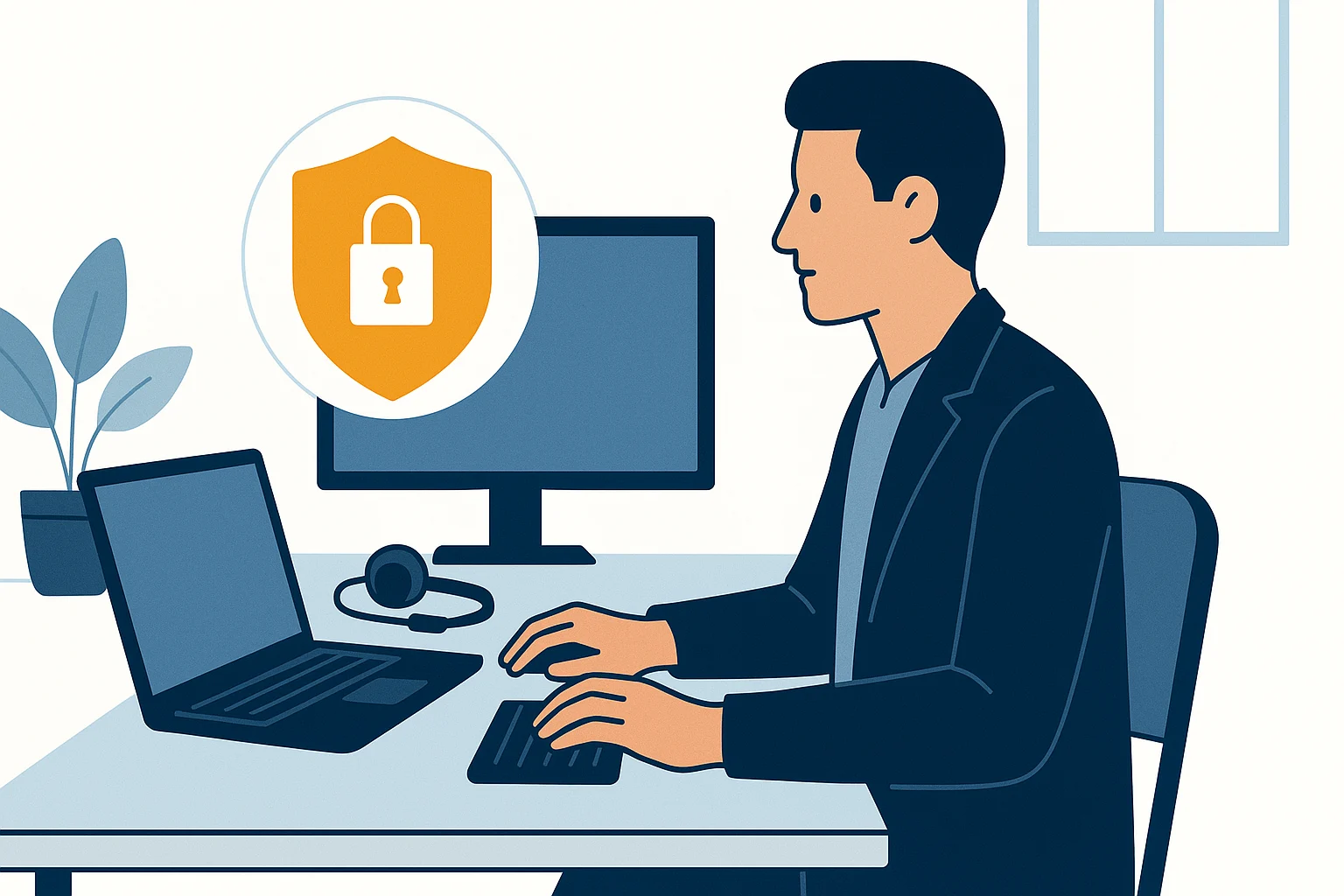
We often get this call. A client phones us and it’s urgent — one of their employees has been working from home for months, and now something isn’t working. Email won’t connect, access to the shared drive is gone, video calls keep dropping. No one has ever looked at the employee’s home setup.
It turns out the laptop is four years old, running whatever antivirus came pre-installed, connected to the router their ISP gave them in 2019. They’ve been accessing company files from that setup the whole time.
Most businesses with remote staff wing it. Someone gets a laptop, a Microsoft 365 login or a Google Workspace one, and figures it out. Everything works — until it doesn’t. Here’s what we find missing almost every time.
1. A company-managed device
This matters more than anything else on the list. When someone connects to their business systems from a personal laptop, you have zero visibility into what’s on that machine — outdated software, expired antivirus definitions, other family members who also use it. If someone gets into that device, your business data goes with it.
Company-managed doesn’t necessarily mean company-purchased. It means the device is enrolled in an endpoint management system so your IT team can enforce security policies, push updates, and remotely wipe it if it’s lost or stolen.
2. A reliable internet connection
For most office roles, 50 Mbps download and 10 Mbps upload is a reasonable base. Employees doing heavy video calls or large file transfers need more. Microsoft publishes specific bandwidth requirements for Teams — worth checking if calls are choppy. Wi-Fi 6 routers handle multiple devices much better than older models, which matters when someone is on a Teams call while the rest of the household is streaming.
For key employees who can’t afford to be offline during business hours, a backup connection — a mobile hotspot, for example — is worth implementing.
3. Multi-factor authentication (MFA) on everything
If you do nothing else on this list, do this. Microsoft’s own research shows MFA blocks more than 99.9% of account compromise attacks. That means if an attacker gets someone’s password — through a phishing email, a data breach, or a lucky guess — MFA stops them from getting in anyway.
It needs to be on everything: email, Microsoft 365, VPN access, and any system reachable from outside the office. This isn’t optional anymore.
4. Secure remote access
When someone connects from home, how do they reach internal systems? If the answer is “they just log in directly,” that’s an open door. Remote employees should connect through a business VPN — not a consumer product — or for more security-conscious setups, a Zero Trust Network Access solution.
The important word is “business-grade.” Consumer VPNs protect individual privacy; they don’t give your IT team any visibility or control. And whichever solution you use, it needs to stay up to date — outdated remote access software is one of the most common entry points for ransomware.
5. Endpoint protection
Standard antivirus watches for known threats. Endpoint detection and response (EDR) watches for suspicious behaviour — things that don’t match known signatures but look wrong anyway. For remote employees whose devices sit outside your office network, real-time endpoint protection is worth the investment. We covered what this looks like in practice in our post on ransomware protection for small businesses.
6. The right collaboration tools, properly set up
Remote work depends entirely on how well your team can communicate and share files. Microsoft 365 — Teams for communication, OneDrive and SharePoint for files, Exchange for email — gives everyone a consistent, IT-managed environment regardless of where they’re working. If your team is still relying on email attachments and personal file-sharing links, it’s worth fixing before it causes a problem. We have a full breakdown of where to store your files in Microsoft 365 if you want to go deeper.
7. A headset that works
This sounds trivial. It isn’t. Poor audio on calls — echo, background noise, family sounds — costs real time and creates a bad impression in client meetings. A decent USB or Bluetooth headset with noise cancellation solves this for around $100. It’s one of the most cost-effective things you can provide a remote employee.
8. An offboarding plan
This is the one that gets forgotten most often. When a remote employee leaves — for any reason — you need to disable their accounts immediately and, if necessary, remotely wipe their device. If their work email is still active a week after they’ve left because no one remembered to turn it off, that’s a live account an attacker can still use.
Offboarding remote employees should be a documented IT checklist, not something you piece together on the fly.
Where to start if you’re not sure where you stand
The gap between a remote setup that works and one that creates problems usually isn’t the hardware — it’s whether anyone thought it through before the employee logged in for the first time. IBM’s 2025 Cost of a Data Breach Report puts the global average at $4.44 million — and US businesses face over $10 million on average. Most small businesses can’t absorb an incident like that.
The good news is that a solid remote work setup isn’t complicated to put in place. It just needs to be put in place.
If you’re not sure your current setup covers all of this, our team is happy to take a look — it’s exactly the kind of assessment built into our managed IT services. We can tell you what’s in place, what’s missing, and what to prioritize first.