At some point, most small businesses outgrow whatever they started with for email.
Maybe you’re still using your internet provider’s email and you’ve lost messages. Maybe you’re on an old Exchange server that someone set up ten years ago and nobody fully understands anymore. Maybe you’ve had the same Gmail account since the business launched and it’s starting to feel less than professional.
Microsoft 365 is usually where the conversation ends up. And for most small businesses, it’s the right call. But the migration process has a few things worth knowing before you start.
What you’re getting
Microsoft 365 Business Basic — the entry-level tier — gives each user a 50 GB mailbox, access to the web versions of Word, Excel, PowerPoint, and Outlook, Teams for communication, and 1 TB of OneDrive storage, all for about $7.90 CAD per user per month.
The mid-tier plans (Business Standard and above) add desktop versions of the Office apps and additional features. Most small businesses land on Basic or Standard.
The email itself is hosted by Microsoft, on servers with a financially backed 99.9% uptime SLA, enterprise-grade spam filtering, and security that’s considerably more robust than whatever most small businesses currently have.
Before the migration starts
A few things to sort out before anyone touches a setting:
Decide on your domain. You’ll want email addresses at your own domain (you@yourbusiness.ca) rather than a Microsoft-assigned address. If you already have a domain, that’s what you’ll use. If you don’t have one registered, that’s step one.
Know who manages your DNS. Microsoft 365 requires DNS changes to route email to their servers. DNS is managed wherever your domain is registered — GoDaddy, Namecheap, your web host, or sometimes your previous IT provider. You need to know who controls that before you start, because if you can’t access your DNS settings, you can’t complete the migration.
Make a list of everyone who needs email. Sounds obvious, but shared mailboxes (info@, accounts@, support@), distribution lists, and alias addresses all need to be migrated too — not just individual inboxes.
Back up your current email. Before making any changes, export a copy of your existing email. For most systems, this is a .PST file (Outlook) or a similar format. If anything goes wrong during the migration, you want to be able to go back.
The migration itself
How the actual migration works depends on where your email is coming from:
From Gmail / Google Workspace: Microsoft has a built-in IMAP migration tool that pulls email from Google into Microsoft 365. It works reasonably well for most small businesses. Large mailboxes take longer — expect a few hours to a few days for the initial sync, depending on volume.
From another mail host (cPanel, Ionos, etc.): Also typically IMAP migration. Same process, same caveats around timing.
From an on-premises Exchange server: This is the most complex scenario and usually requires someone who knows what they’re doing. Microsoft’s Exchange Migration Wizard handles it, but there are edge cases — especially with older Exchange versions — that require hands-on troubleshooting.
For a small team with modest mailboxes (under 5 GB per user): The simplest approach is sometimes just to export email manually and import it after accounts are set up. Less elegant than an automated migration, but fast and predictable.
The DNS cutover
This is the moment the migration goes live.
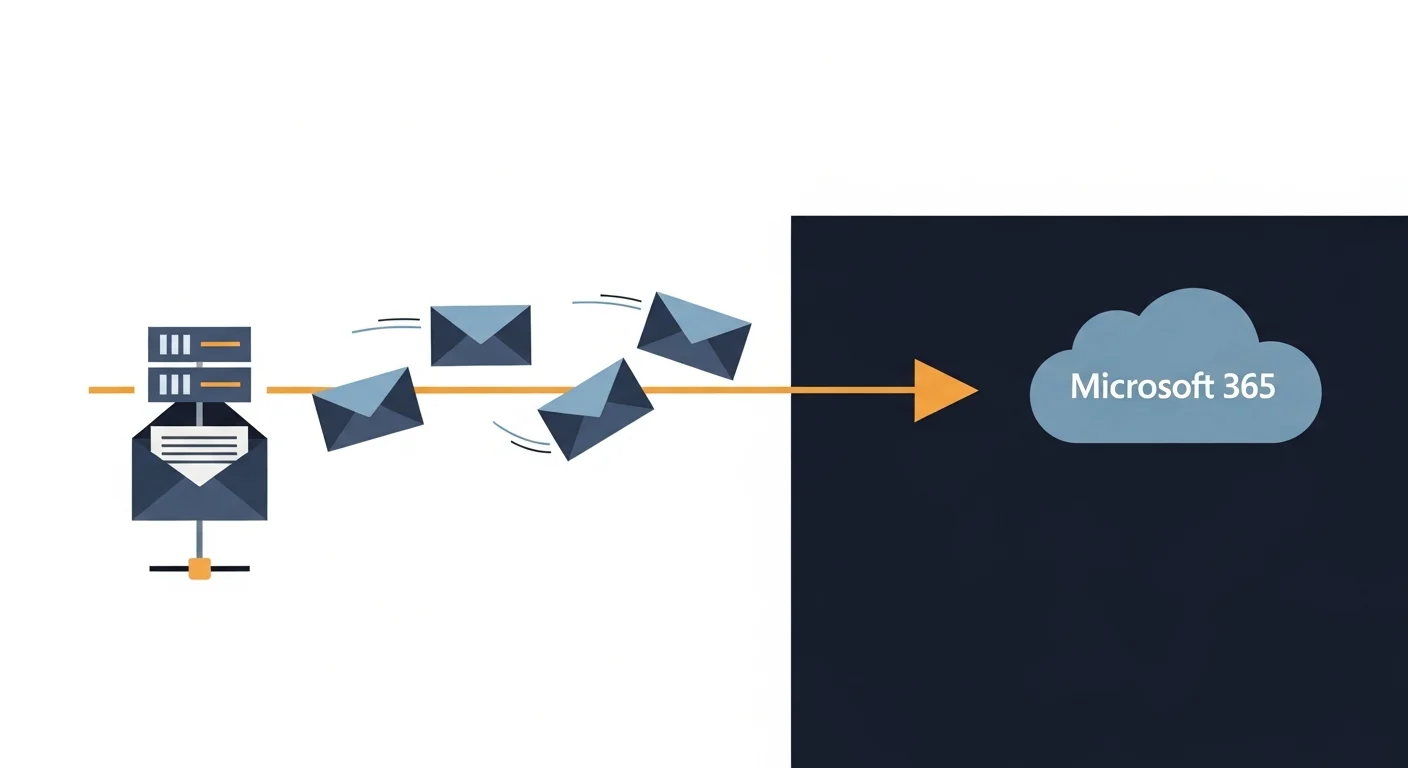
When you update your MX records — the DNS records that tell the world where to deliver email for your domain — new email starts flowing to Microsoft 365. It’s not instant; DNS changes propagate across the internet over a few hours, sometimes up to 48 hours in edge cases.
During that window, some messages will still go to your old system and some will go to the new one. Plan for this. Don’t decommission your old email system until propagation is complete and you’ve confirmed everything is arriving correctly.
What happens to old email
Old email doesn’t move itself. The migration process (whether automated or manual) copies your historical email from the old system to the new one. Most automated migrations run the initial sync before the DNS cutover, then do a final sync of anything that arrived during the process. If it’s done properly, you shouldn’t lose anything.
That said, things to watch for: large attachments that didn’t transfer, calendar events that didn’t migrate correctly, and contacts that need to be re-imported. These aren’t guaranteed problems, but they’re the most common places to check after the fact.
Outlook setup on your devices
Once your Microsoft 365 accounts are live, everyone needs to set up Outlook on their computers and phones. For computers, this usually means signing into the Outlook app with the new Microsoft 365 credentials. For phones, the Microsoft Outlook app (free on iOS and Android) is the simplest option.
Plan for an hour or two of setup time across your team — more if people have complex Outlook configurations like shared calendars or multiple accounts.
The part people don’t expect
Licences are per-user, per-month, and they renew automatically. Budget for this as a recurring cost, not a one-time expense. For a team of ten on Business Standard, that’s roughly $169/month in Canadian dollars at current pricing.
Also worth knowing: Microsoft doesn’t back up your email the way most people assume. They maintain infrastructure redundancy, but if you permanently delete a mailbox or a large folder, the default retention window is limited. If you have compliance requirements or simply want to be able to restore email from months or years ago, our Microsoft 365 backup service covers that.
Is it worth it?
For most small businesses: yes.
The reliability, the security, the access from anywhere, the integration with Teams and OneDrive — it adds up. The migration is work, but it’s a one-time project. The ongoing cost is predictable. And you stop worrying about where your email is or whether it’s being backed up.
If you’re ready to make the move — or just want to understand what it would involve for your specific setup — book a call with us. We’ve done this migration more times than I can count, and we’ll make sure you don’t lose anything in the process.